![Logo-Full White.png]](https://help.joinsubtext.com/hs-fs/hubfs/Logo-Full%20White.png?height=40&name=Logo-Full%20White.png)
You've worked hard acquiring your existing audience and now you can easily import them directly into the Subtext Dashboard. 🔄
Navigate to the Audience tab 👫
You'll start by navigating to the Audience tab in your dashboard. From here you'll see there's a Manage Audience option on the lefthand menu.
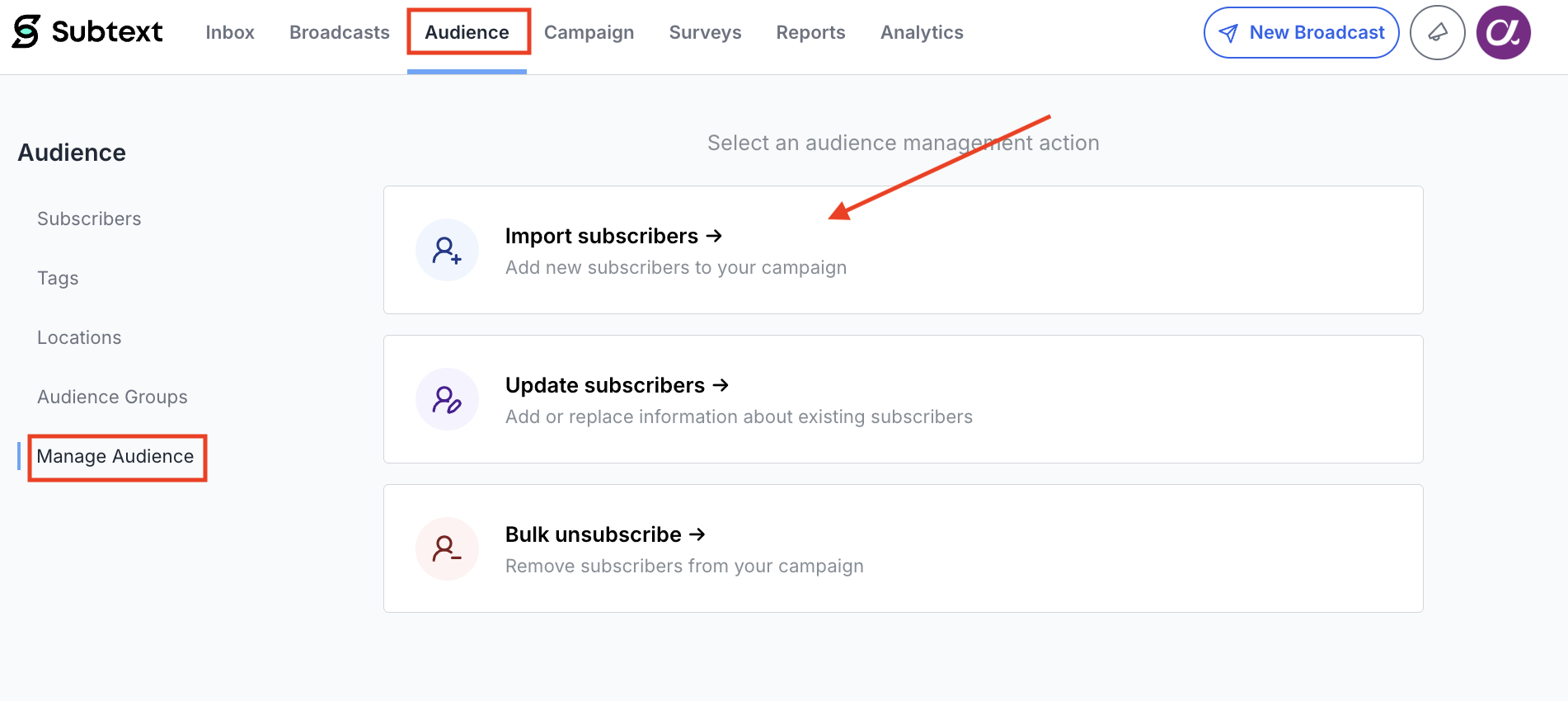
You'll then click on Import Subscribers to begin the process. 👫
Next, you'll be directed to the next screen where you'll click Select File to open your file browser.
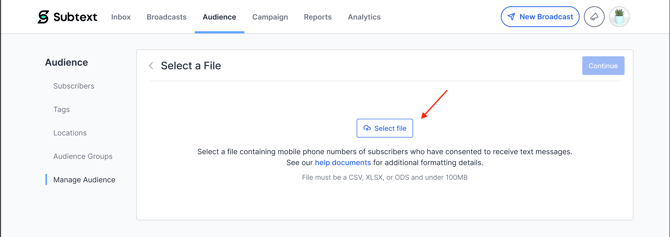
From here you'll choose the file you'd like to import containing your subscriber data. The file must be under 100MB and formatted as a CSV, XLSX, or ODS file. 📂
➡️ Click here for additional instructions on formatting your import files.
**The file must contain at least one column with mobile phone numbers.
Once you've selected the file you'd like to import, click Open.
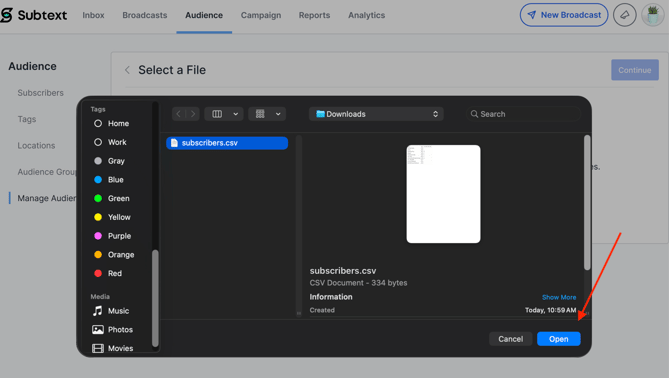
The Continue button will then become active and you'll click it to proceed to the Match Properties screen. ➡️
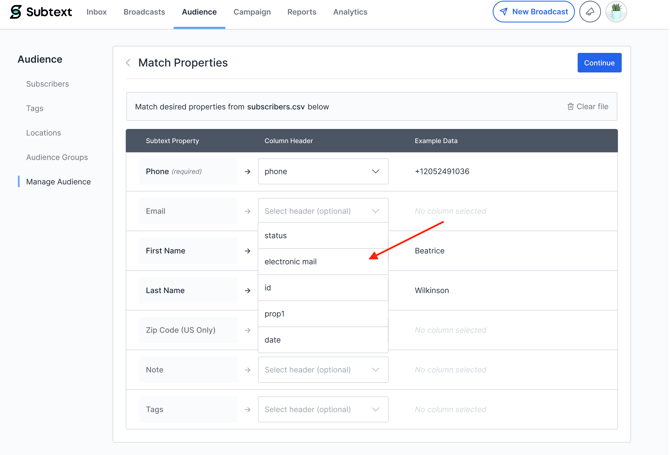
Subtext will then read the column headers from your file and attempt to auto-match them to Subtext's subscriber properties.
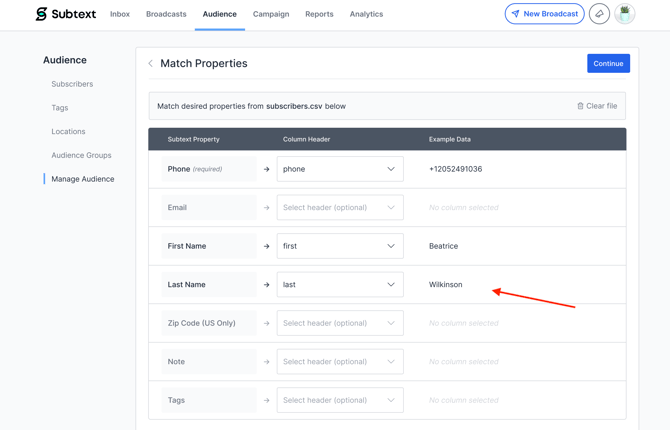
Use the drop-downs in the Column Header column to match each Subtext property to the correct column in your file.
Example data from your file is shown on the right to help confirm the correct mapping.
- Phone (required) — must be mapped to proceed
- Email, First Name, Last Name, Zip Code, Note, and Tags are all optional
- Any columns in your file that don't correspond to a Subtext property can be left unmapped and will be ignored
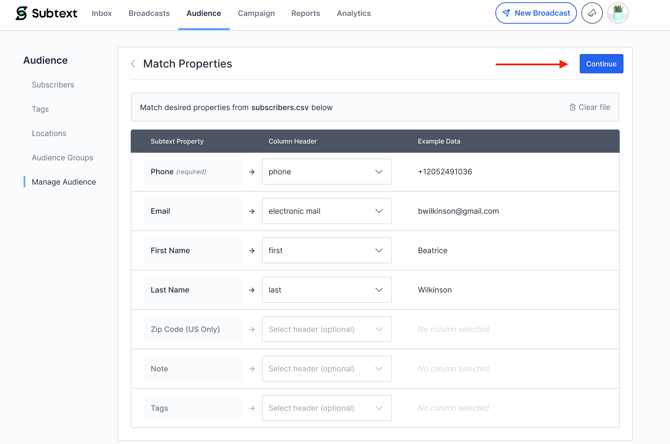
Once Phone is mapped, the Continue button will activate. Click Continue when your mapping is complete.
Review Details
You will then be directed to the Review Details screen.
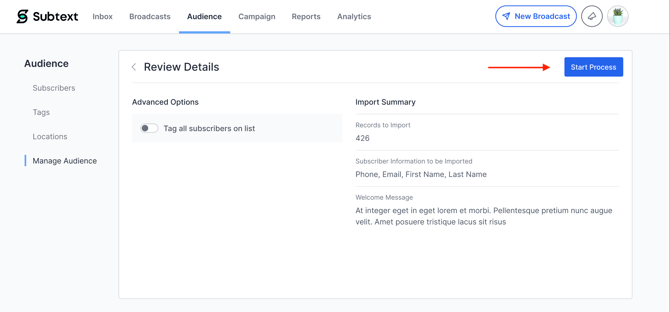
Import Summary
This summary displays the total number of records to be imported and which subscriber fields will be included (e.g., Phone, First Name, Last Name). If a Welcome Message is configured for your campaign, it will also be shown here.
🚫 If you do not wish to have a welcome message go out to your audience upon import, please navigate back to the Campaign tab and under Campaign sign-up, select Subscribe Silently before completing your import.
🚨Review all details carefully before proceeding to import .🚨
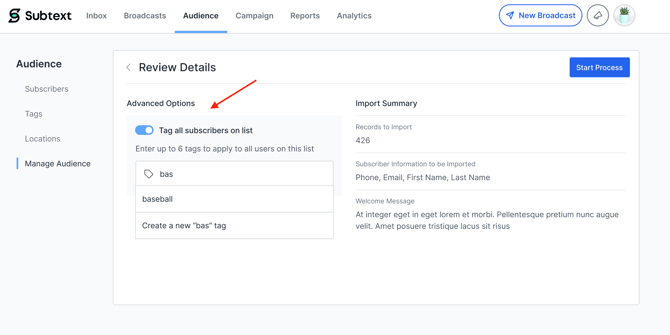
Advanced Options
Tag all subscribers on list 🏷️
This option should be toggled on to automatically apply a tag to every subscriber added in this import. This is useful for segmenting newly-imported subscribers later.
When you are ready, click Start Process. The import will begin running in the background.
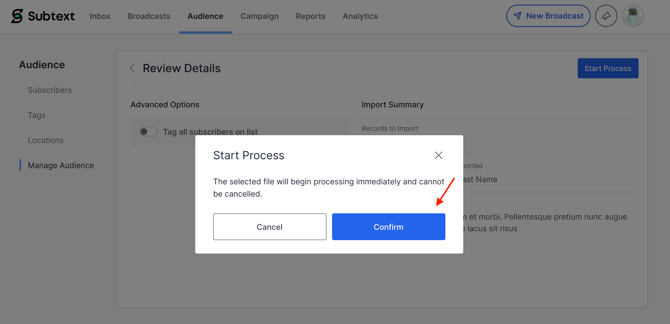
After submitting, the Manage Audience hub will display a banner indicating that an import is in progress.
.jpg?width=670&height=419&name=Action%20Selection%20Page%20(1).jpg)
The Import subscribers option will be temporarily disabled while the process runs.
You do not need to remain on this page. The import will continue running in the background.
Email Confirmation 📩
When the import is complete, Subtext will send an email to the account's registered email address with a full summary of results.
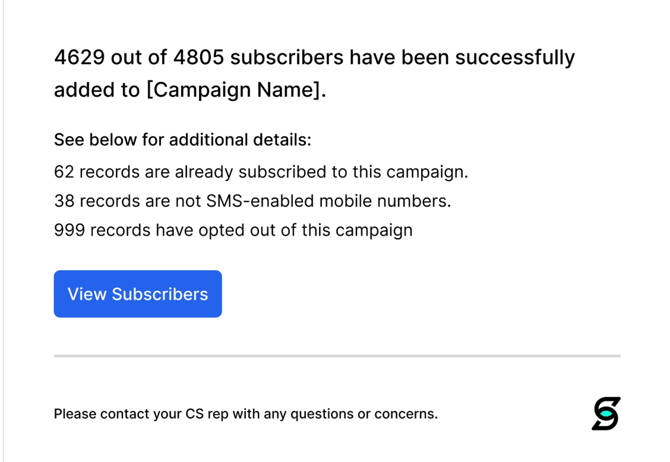
The email will show:
- Total number of subscribers successfully added.
- Number of records already subscribed to the campaign (duplicates skipped).
- Number of records that are not valid SMS-enabled mobile numbers.
- Number of records that have previously opted out of the campaign.
A View Subscribers button in the email links directly to the Subscribers section of your campaign for immediate review.
Your newly imported audience is now ready to text! 📲
Any questions? Reach out to your CS Manager and they'll be able to help you out. 😎