![Logo-Full White.png]](https://help.joinsubtext.com/hs-fs/hubfs/Logo-Full%20White.png?height=40&name=Logo-Full%20White.png)
Manage Audience is your one-stop hub for bulk audience work.
Instead of editing subscribers one at a time, you can upload a file and let Subtext do the heavy lifting — whether you're adding new people, filling in information on people you already have, or removing a group.
Where can I find this feature? 🔍
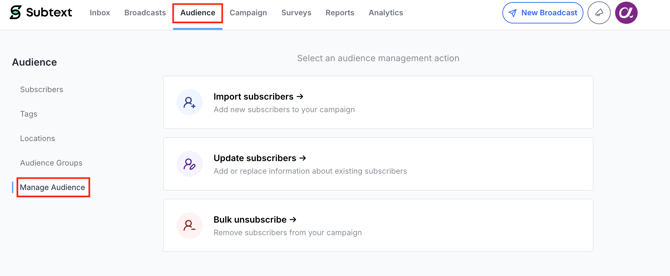
You'll find it by navigating to the Audience tab in your dashboard, then selecting Manage Audience from the lefthand menu.
Choosing an action 🖐️
You'll land on the action selection screen, where you'll see three options. 👀
-
Import subscribers — Add new subscribers to your campaign by importing a file
➡️ Click here for specific import instructions -
Update subscribers — Add or replace information about existing subscribers
➡️ Click here for specific update instructions -
Bulk unsubscribe — Remove subscribers from your campaign
➡️ Click here for specific unsubscribe instructions
All three actions follow the same three-step flow ♻️:
Select a File 👉 Match Properties 👉 Review Details
Step 1 — Select a File
Click Select file to open your file browser.
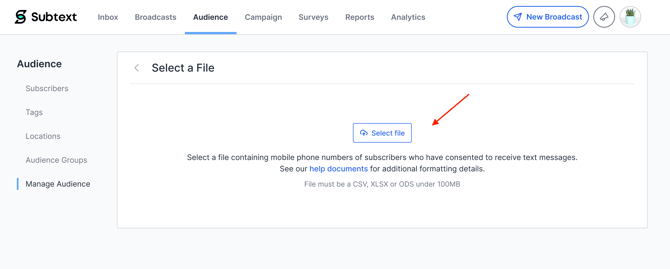
Choose the file you'd like to use, and click Open.
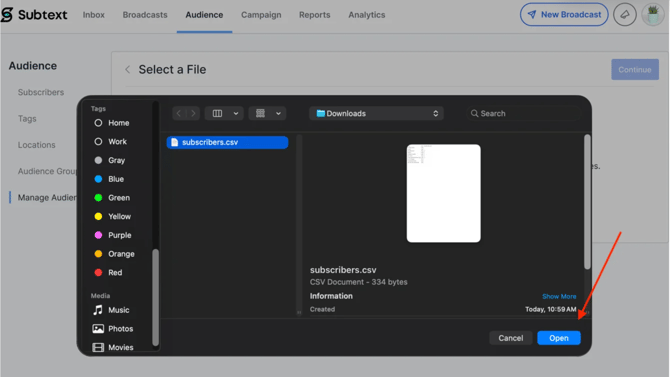
Your file will upload and you'll move straight to the next step.
Changed your mind? 🤔
The Clear file link next to your filename discards the file and takes you back to this screen. **Just note that any matching you've done will be lost.
Step 2 — Match Properties
Subtext will read the column headers from your file and attempt to auto-match them to Subtext's subscriber properties.
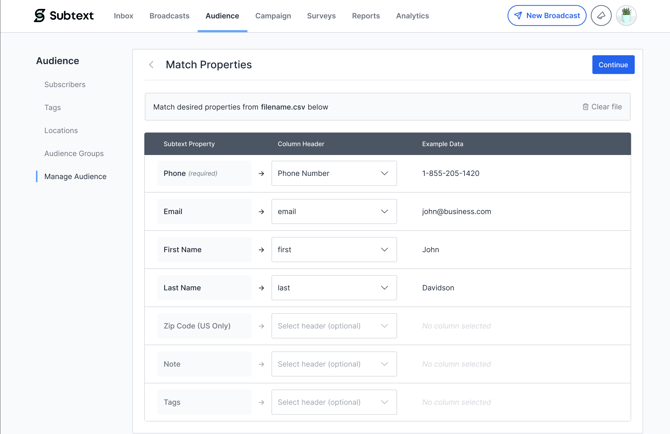
Use the drop-downs in the Column Header column to match each Subtext property to the correct column in your file.
The Phone field is required, but all other fields are optional. Once the phone is mapped, the Continue button will activate. Once all mapping is complete, click Continue.
🚨Keep in mind 🚨
If you're updating subscribers, map only the fields you actually want to change. Anything you map will replace what's already there. We'll get more in depth into this process in the review section below.
Step 3 — Review Details
This is your last look before anything happens, so review it carefully. What you'll see here depends on the action you chose.
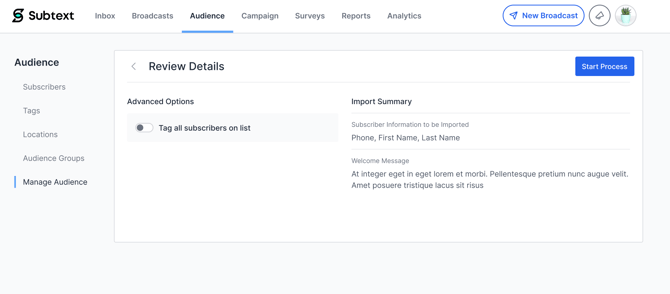
For Importing subscribers ⬇️
The Import Summary shows which subscriber fields will be included (e.g. Phone, First Name, Last Name), along with your campaign's Welcome Message if one is configured.
For Updating subscribers ✏️
The summary when updating subscribers will only list the properties you mapped to be updated. There's no Welcome Message row here — updates never message your subscribers. 🤫
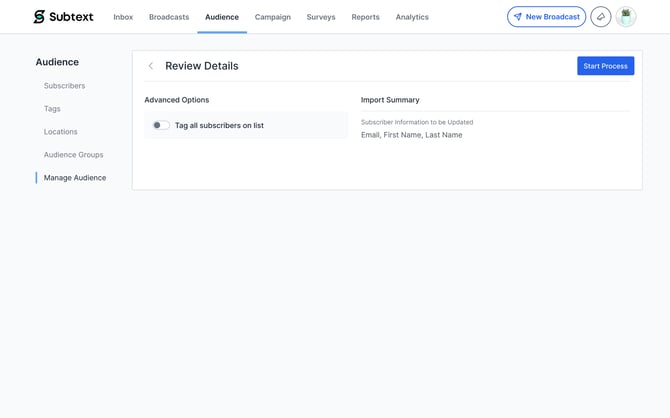
Updates are matched by phone number, and only against people already on your campaign.
For Bulk unsubscribes ❌
The unsubscribe summary will show two things: records that will be unsubscribed and the unsubscribe message each subscriber will receive.
.jpg?width=670&height=419&name=Review%20Step%20(1).jpg)
🚨 Check that record count against what you were expecting before you continue. 🚨
Step 4 — Confirm and start
When you're ready, click Start Process.
A confirmation window will open — your process doesn't begin until you complete it.
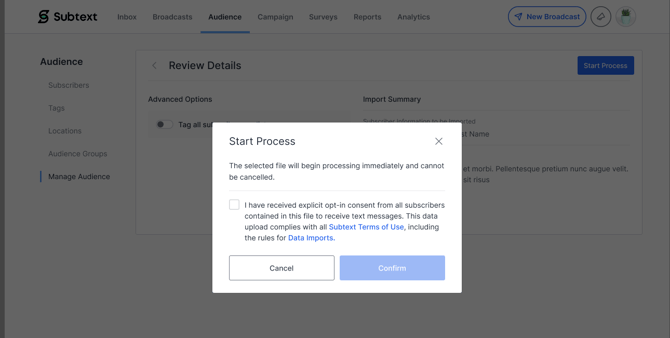
Every version of this window reminds you that the file will begin processing immediately and cannot be cancelled, however each version will also be slightly different depending on your action.
🚨Read each version carefully to ensure you are compliant and completing the intended action. 🚨
While your process runs
You'll be returned to the Manage Audience hub, where a banner confirms the action is running: "You will receive an email with additional details when the current process is complete."
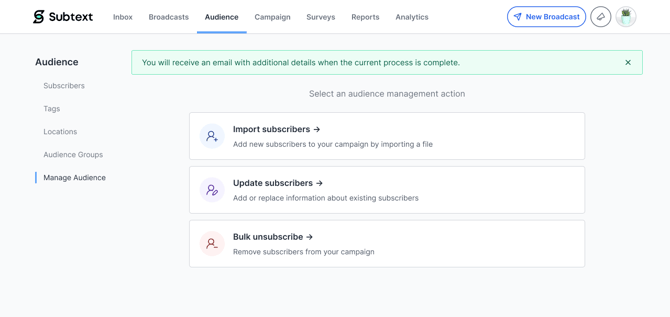
You do not need to remain on this page as your process will continue running in the background. ⏳
Email Confirmation
When your process is complete, Subtext will send an email to the account's registered email address with a full summary of results. 📩
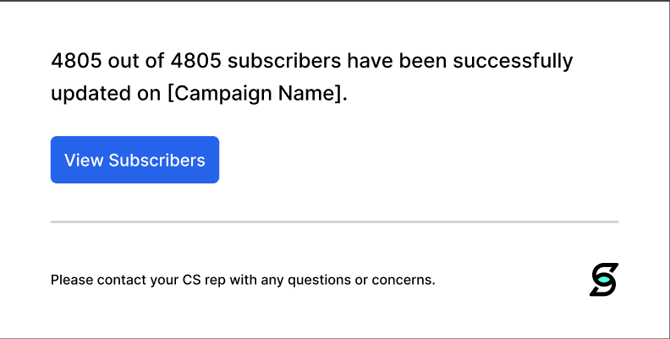
Depending on your action, the email will confirm :
-
How many subscribers were successfully added to your campaign
-
How many were successfully updated on your campaign
-
How many were successfully unsubscribed from your campaign
A View Subscribers button links directly to the Subscribers section of your campaign for immediate review. 👀
What gets skipped 📃
If any records were skipped, they'll be listed on this email with the reason.
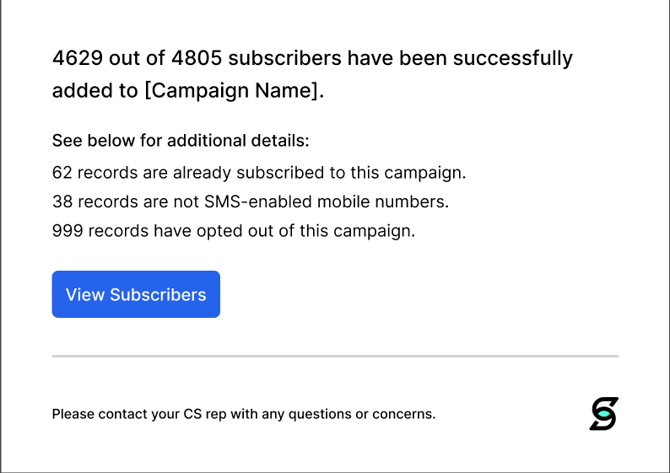
For an import, records are skipped when they:
-
Have no phone number, or an invalid one
-
Aren't SMS-enabled mobile numbers
-
Are already subscribed to your campaign (duplicates)
-
Have previously opted out of your campaign
For an update or bulk unsubscribe, records are skipped when they:
-
Have already opted out of your campaign
-
Aren't recognized on your campaign
Skipped records won't stop the rest of your list from processing — everything that passes validation goes through. ✅
Congrats, your audience is now up to date and ready to text! 📲
Still have questions? Reach out to your CS Manager and they'll be able to help you out. 😎