![Logo-Full White.png]](https://help.joinsubtext.com/hs-fs/hubfs/Logo-Full%20White.png?height=40&name=Logo-Full%20White.png)
Cue: Audience Groups 👫
Audience Groups let you create saved, reusable audiences defined by the conditions you choose.
How do I set-up an audience group?
Audience groups can be found under the Audience tab in your dashboard.
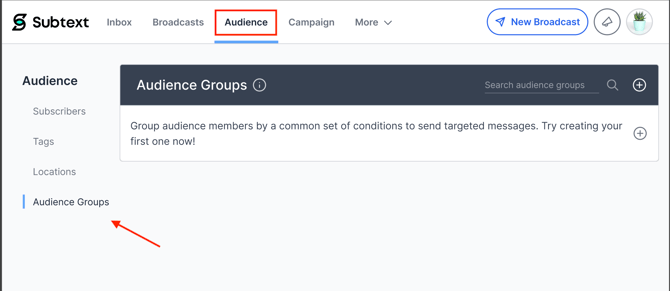
From here, click the top right "+" sign to get started!
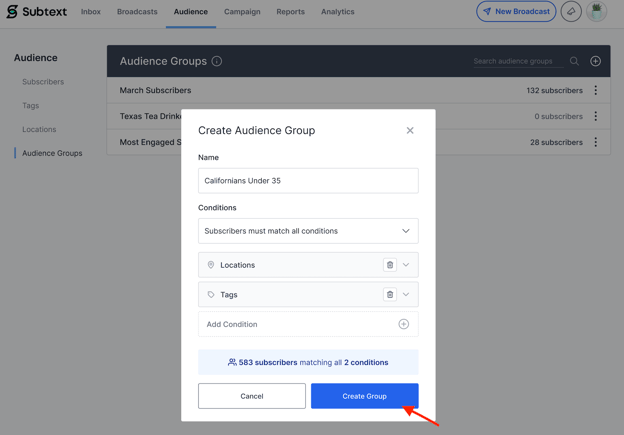
This will bring you to the Create Audience Group modal.
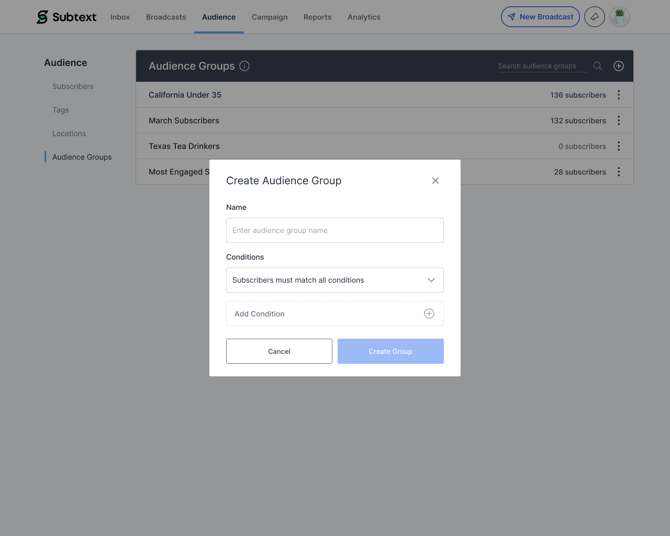
From here, you will choose your audience group name and conditions.
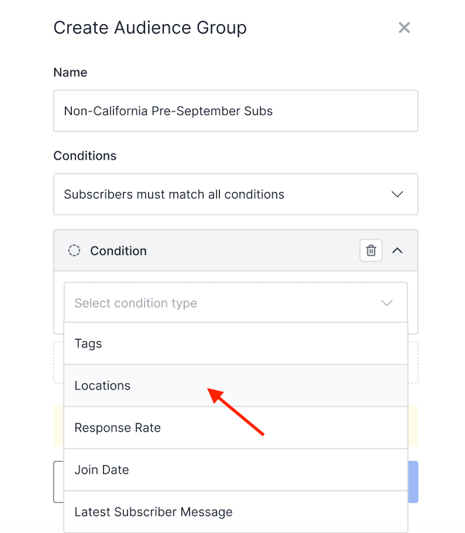
You can then select options from the following conditions:
• Location
• Subscriber Tags
• Join Date (specific, relative, or date range)
• Latest Subscriber Message activity
We'll work with the following example to demonstrate.
Example
We'll use Californians under 35 as the audience group name. Add this name under the Name field to begin.
Then you will choose the Location condition. 🌏
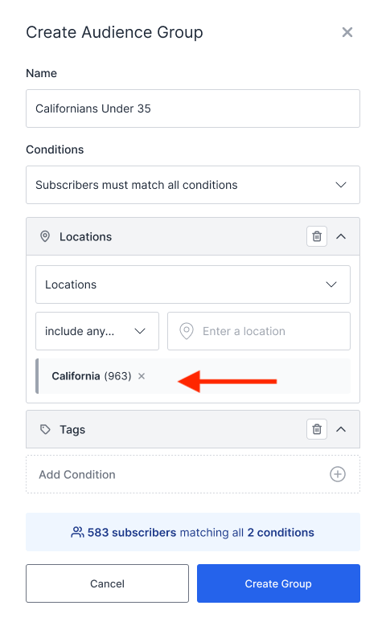
And then you will add the Tag condition. 🏷️
.png?width=362&height=584&name=Edit%20Audience%20Modal%20(1).png)
Once you've selected all your conditions, you'll click on Create Group.
From here, it'll take you back to the Audience Groups main page with your new audience added to the list of options.
.jpg?width=583&height=467&name=Main%20-%20XL%20(4).jpg)
And voila, your audience group is ready to use! ✨
🔗 Check out this article to learn how to manage your audience groups once created.